
In this article, we will explore a few key considerations for securing your repositories and pipelines. This is by no means an exhaustive list, instead we are going to look at three main concepts in this article:
- Protected Branches
- Exposing Credentials to Branches
- Codeowners
Context Matters
Security is crucial for safe business processes, but it shouldn’t be a blocker all the time. This article covers a few best practices to consider, though they aren’t strict rules.
Context matters. The security measures you apply to CI/CD systems deploying mission critical systems are different to those which you may apply to a quick script you want to version control.
Branch Protection
git commit -m "I did some stuff."
git push origin main
Look familiar? Of course it does. We’ve all committed to the main branch before - like I say, context matters. But let’s understand what branch protection is, and why we may want to use it.
Branch protection is the process of ensuring that certain branches (in this case, main) cannot be pushed to directly. Instead, code must go through a pull/merge request workflow - ideally with a reviewer that isn’t yourself. Why might we want to do this?
- Stability - If we’re pushing code straight into a trunk branch such as main, are we sure it is working? Pull/merge request workflows give us an opportunity to automatically test code. Main (or whatever trunk branch you’re using) should, ideally, always be in a deployable state.
- Code Quality and Standards - Is the code being pushed adhering to our internal standards?
- Security - What if a malicious user or compromised accounts are pushing malicious changes into your code? This may go unnoticed if pushed directly into the main branch without review.
Branch protection gives us a way of ensuring that code changes have been reviewed, tested and that they adhere to our standards, as well as providing a chokepoint to check for any malicious intent.
Exposing Secrets to Branches
Ok, so you’ve enabled branch protection - great!

If only life were that easy. Another thing to consider is secrets. Most CI/CD pipelines are going to need secrets, and these pipelines configuration files are generally defined as code in the same repository. What if a malicious user or compromised account modifies the pipeline configuration to intentionally print the secrets it has access to?
“Our secrets are marked secret and they are masked in the pipelines!”
Are you sure? Let’s look at an example. We’ve got a variable group setup in Azure DevOps and have marked an entry as sensitive (the little lock icon). Once it has been marked as sensitive, we can’t view it again in the web interface (it becomes write-only), but our pipelines can still access it.
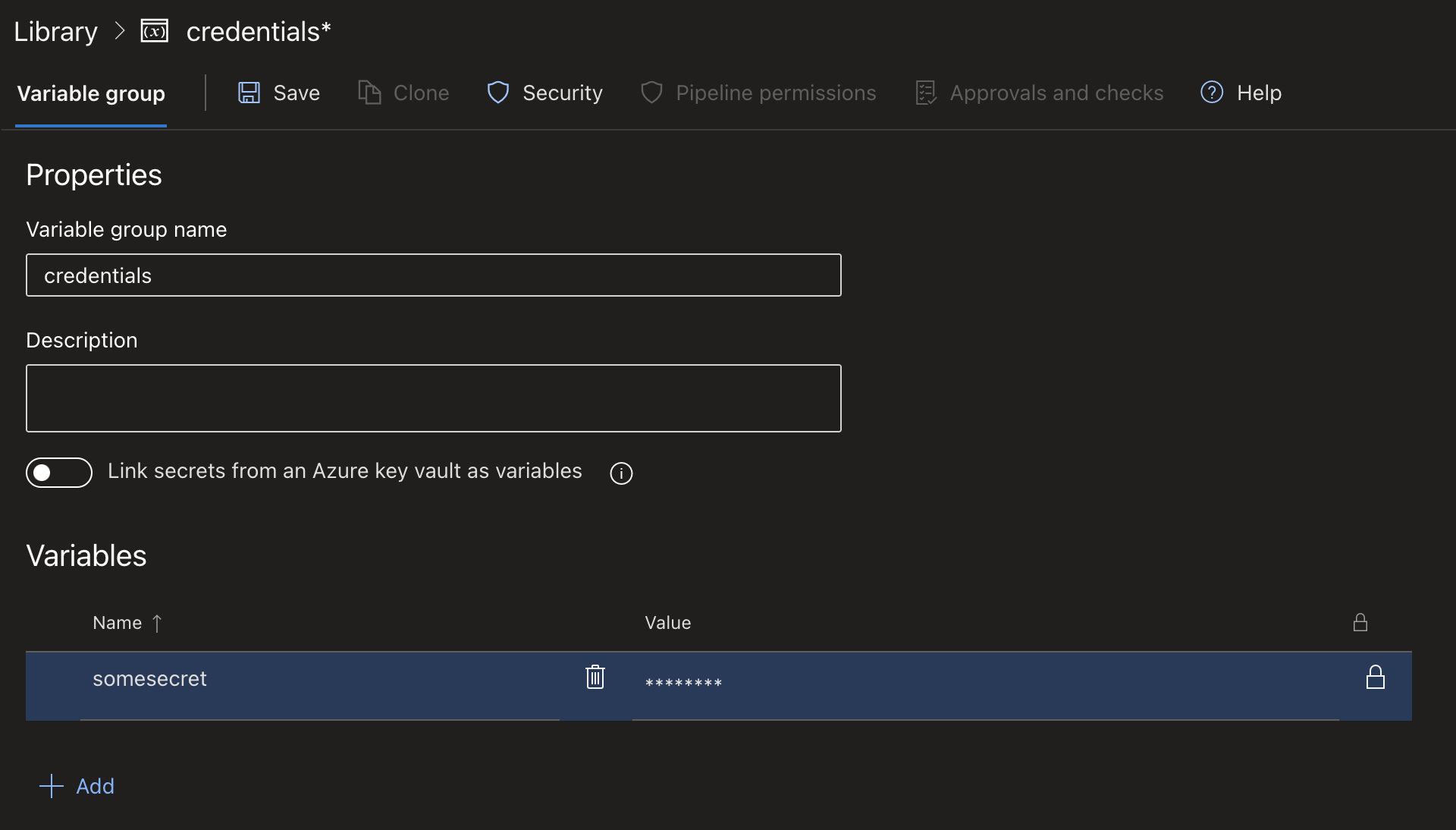
Let’s run a test pipeline with the following and see what we get.
trigger:
- '*'

variables:
- group: credentials

jobs:
- job: tryingToDoBadThings
  pool:
    vmImage: 'ubuntu-latest'
  steps:
  - script: |
      echo "The secreet is $(somesecret)"
    displayName: 'Dump the secret'
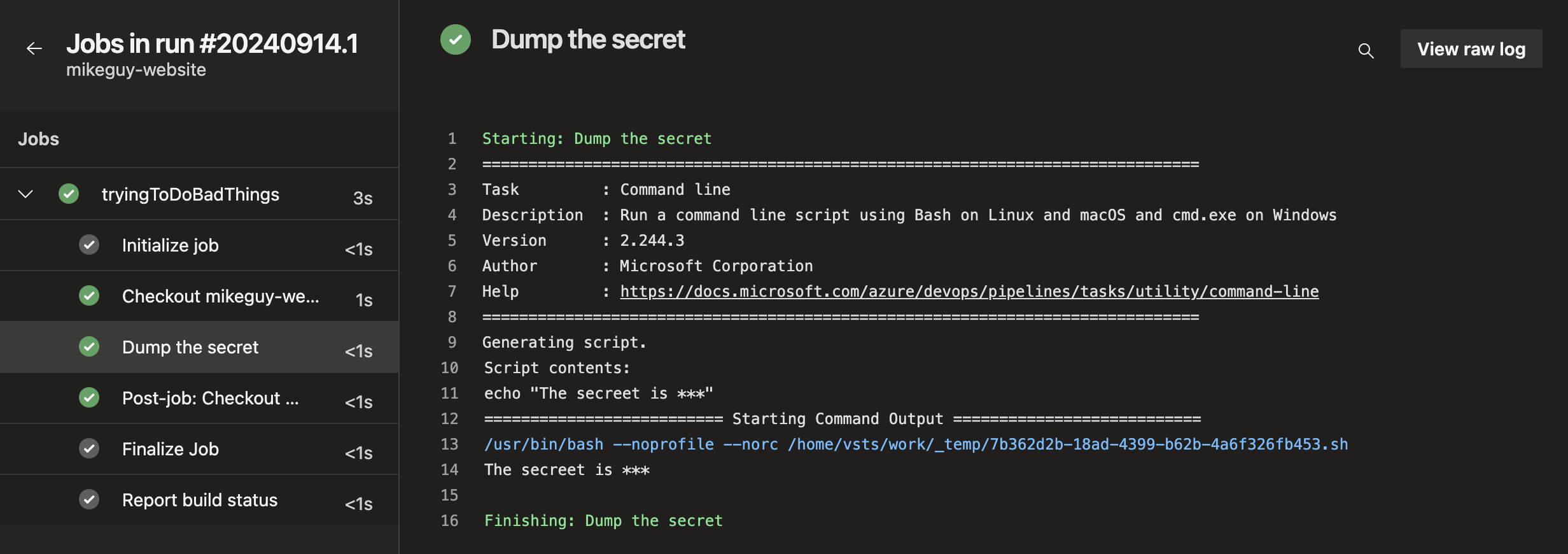
Thwarted! Azure DevOps masked our sensitive variables. However, what if we make a little tweak to our pipeline?
trigger:
- '*'

variables:
- group: credentials

jobs:
- job: tryingToDoBadThings
  pool:
    vmImage: 'ubuntu-latest'
  steps:
  - script: |
      base64encoded=$(echo "$(somesecret)" | base64)
      echo "The base64 encoded secret is: $base64encoded"
    displayName: 'Dump the encoded secret'
All we’ve done here is base64 encode the secret. With that little change, we have printed a base64 string that we can easily decode to get the real secret value…
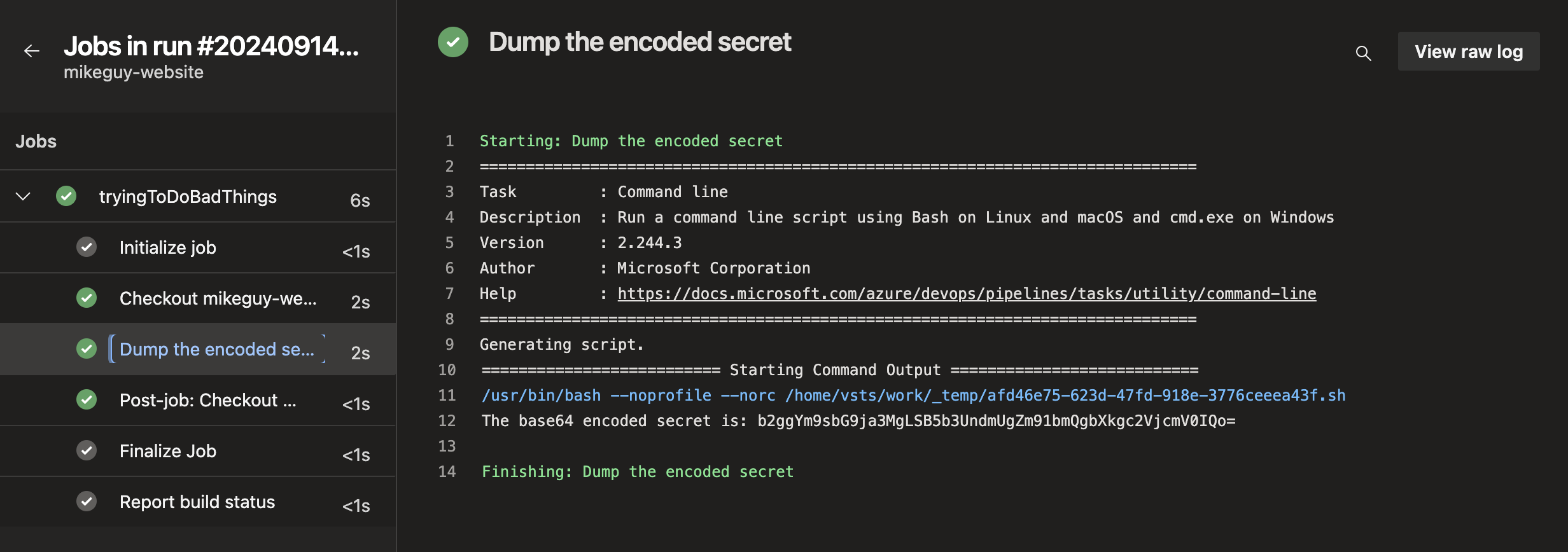
➜  mikeguy.co.uk git:(main) ✗ echo "b2ggYm9sbG9ja3MgLSB5b3UndmUgZm91bmQgbXkgc2VjcmV0IQo=" | base64 -d
oh bollocks - you've found my secret!
The sensitive feature of Azure DevOps and other platforms, only masks the literal string, so if it has been transformed in a way that can be reversed (such as Base64), we can still retrieve the data.
What can we do about this?
- Ensure we are using protected branches - this means that if someone tries to sneak malicious code like this into the main branch, we have an opportunity to catch it. This doesn’t however prevent modified pipelines from running on the non-protected branch.
- Once your main branch is protected, you want to ensure that you’re production secrets are only exposed to that protected branch. This varies from platform to platform, but on Azure DevOps, this can be done with the “Approvals and Checks” tab under the variable group.
- Finally, if you’re non-protected branch still needs credentials, considering giving it lower-privileged credentials where possible.
Point three comes up a fair bit in the work I do. For example, a common use-case is being able to execute Terraform plans on a pull request. Terraform clearly needs some credentials to be able to run a plan and talk to the relevant APIs, but I’ll provide separate read-only credentials. Yes, this means the credentials can still be exposed in the manner we’ve looked at, but there is limited damage that someone can do with a read-only credential. Security isn’t always black and white - mitigating controls can reduce risk to an acceptable level whilst still meeting your automation goals.
Codeowners
Maybe parts of our code base are more sensitive than others and require additional scrutiny. Wouldn’t it be great if we could ensure certain individuals or teams were reviewing pull requests? Well fortunately, we can!
Codeowners is a special file (literally called CODEOWNERS) that instructs the platform which files or directories have to be reviewed by certain individuals/teams. This can then be enforced as a mandatory requirement during pull requests. For example:
# This is a sample CODEOWNERS file

# The security-team must review changes to this file
/somesensitivefile.go @security-team

# All other files can be reviewed by anyone
* @everyone
Unfortunately, not all platforms support codeowners (come on Microsoft!), but I know that GitLab and GitHub both do. Similar can still be achieved with Azure DevOps however, through the use of “Automatically included reviewers” policies.
To setup similar on Azure DevOps, navigate to your project settings, select the repository settings, then the main branch (or whatever applicable branch) under policies > branch policies.

Scroll down to “automatically included reviewers” and add your relevant policy.

Conclusion
Hopefully this article has highlighted some of the controls you can start to put in place to help secure your deployments. In case it is not apparent, all of these controls rely on you having your user permissions in check. No matter what controls you implement, if everyone has the access to turn them off then they will!
This is by no means a comprehensive list, but I may cover more in future articles. If you’re interested in hearing more on these, drop me a message to let me know, and if you found this useful, share it with someone else!