
In part one we looked at a basic deployment of the Azure Verified Module for Azure Landing Zones (avm-ptn-alz). We adjusted policy parameters, changed names and tweaked some policy assignments.
In this article we are going to dive a little more into customising policies and roles by assigning some built-in and custom ones.
If you’ve not already - go back and read part one to get yourself up to speed.
Recap
In part one, we covered the basics of deploying the Azure Verified Module for Azure Landing Zones. We looked at:
- Setting up a basic deployment with the
avm-ptn-alzmodule. - Understanding how the ALZ provider works with library references.
- Customising management group display names through custom architecture definitions.
- Modifying policy assignment parameters to suit our requirements.
- Removing unwanted policy assignments using archetype overrides.
We saw how the newer AVM approach has broken up the monolithic CAF Enterprise-Scale module into smaller, more manageable modules. This modular approach gives us greater flexibility but does require a bit more understanding of how the components fit together.
By the end of part one, we had successfully deployed a customised landing zone structure with modified policy assignments. Now, let’s take things a step further and look at how we can create custom policies, assign existing ones, and work with role definitions.
Assigning Built-In Policies
In part one, we customised which module-defined policies were assigned/created, by modifying archetype overrides. But what if you wanted to utilise some of the built-in Azure policy definitions?
In this example, we are just assigning an existing policy that is already defined, so we are not going to need to create a policy definition. Instead, we are only going to need to create an assignment using a *.alz_policy_assignment.json file.
First, we need to start by knowing what the policy ID is that we want to assign. Let’s use the “Allowed virtual machine size SKUs” policy as working example.
Navigating to the policy definition in the portal, I can see that the policy definition ID is /providers/Microsoft.Authorization/policyDefinitions/cccc23c7-8427-4f53-ad12-b6a63eb452b3.
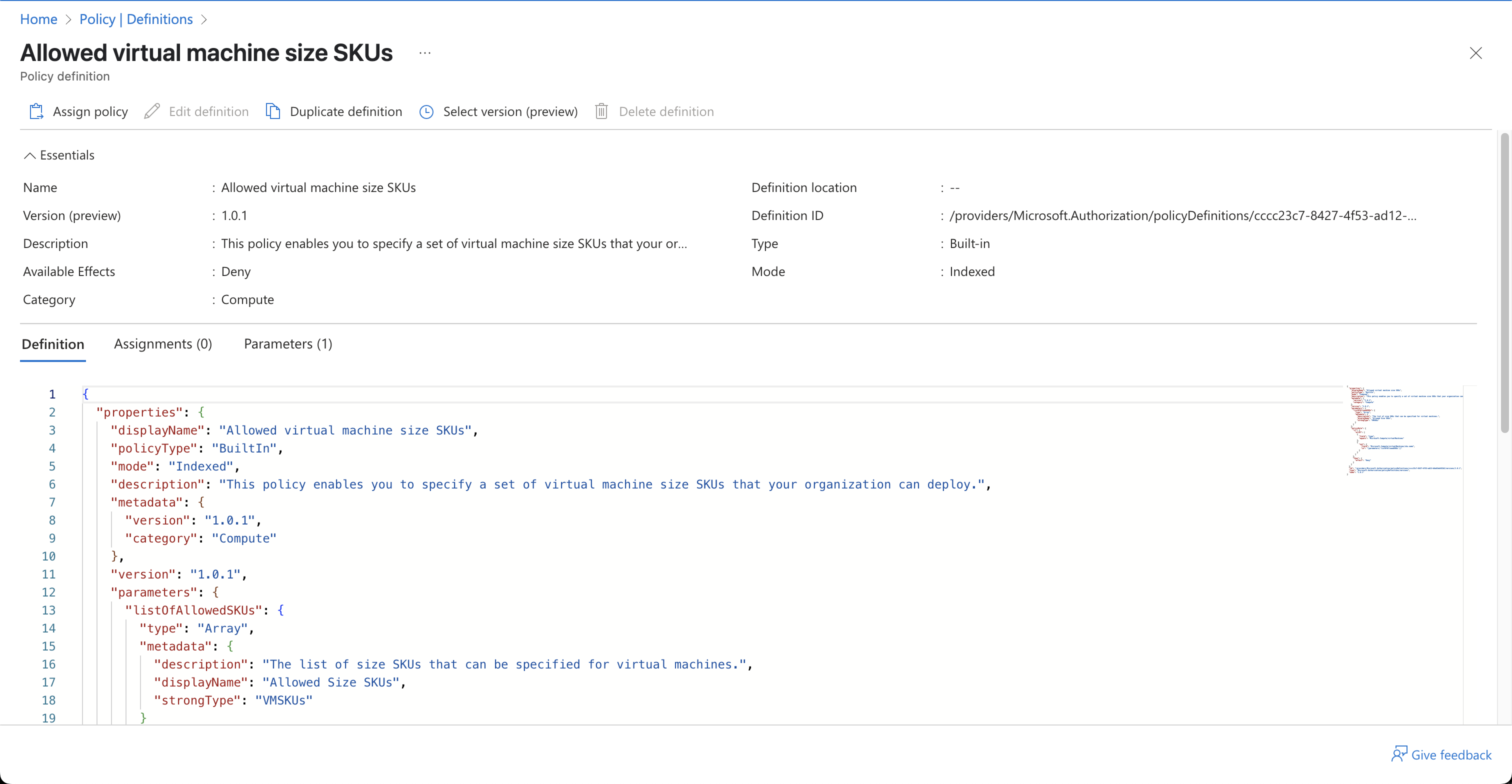
We are now going to create a policy definition file ending in .alz_policy_assignment.json. I am going to put this in lib/policy_assignments, but as a reminder, the directory name is not important, it is the file name ending that is important.
This assignment file is essentially the same as you’d create from an ARM template point of view, but the module will handle the deployment of it.
In the example below, I’ve hardcoded a bunch of allowed SKUs into the assignment directly, but as we covered in part one, these can be overridden by Terraform using inputs to the module instead.
“If I can do it in two different ways, which should I use?”
My train of thought here is… if you’re likely to update them on a regular basis or they depend on something else in your code, then I’d use Terraform inputs. If they are unlikely to change, you may consider hardcoding them.
Notice that in the scope of the assignment above, we have used "/providers/Microsoft.Management/managementGroups/placeholder", - this placeholder will be automatically overridden by the module, based on the archetype override we assign it to.
{
  "type": "Microsoft.Authorization/policyAssignments",
  "apiVersion": "2022-06-01",
  "location": "${default_location}",
  "name": "Allowed-VM-SKUs",
  "dependsOn": [],
  "identity": null,
  "properties": {
    "policyDefinitionId": "/providers/Microsoft.Authorization/policyDefinitions/cccc23c7-8427-4f53-ad12-b6a63eb452b3",
    "description": "This policy restricts the sizes of VMs that can be created",
    "displayName": "Allowed VM Sizes",
    "enforcementMode": "Default",
    "notScopes": [],
    "scope": "/providers/Microsoft.Management/managementGroups/placeholder",
    "parameters": {
      "listOfAllowedSKUs": {
        "value": [
          "Standard_D2s_v3",
          "Standard_D4s_v3",
          "Standard_D8s_v3",
          "Standard_B1s",
          "Standard_B2s",
          "Standard_B4ms",
          "Standard_B8ms",
          "Standard_DS3_v2",
          "Standard_D2_v2",
          "Standard_DS4_v2",
          "Standard_D16s_v3",
          "Standard_D32s_v3",
          "Standard_E2s_v3",
          "Standard_E4s_v3",
          "Standard_E8s_v3",
          "Standard_F2s_v2",
          "Standard_F4s_v2",
          "Standard_F8s_v2",
          "Standard_B1ls"
        ]
      }
    },
    "nonComplianceMessages": [
      {
        "message": "This virtual machine size isn't allowed."
      }
    ]
  }
}
Remember the *.alz_archetype_override.json files we looked at in part one? We now need to update this to attach this new assignment to a specific point in the hierarchy. We will do this using the name property we defined in the assignment above.
We will attach our assignment at the landingzones level in this example. Opening landingzones.alz_archetype_override.json we will add the name to the policy_assignments_to_add list, as shown below:
{
  "name": "landing_zones_override",
  "base_archetype": "landing_zones",
  "policy_assignments_to_add": ["Allowed-VM-SKUs"],
  "policy_assignments_to_remove": ["Enable-DDoS-VNET"],
  "policy_definitions_to_add": [],
  "policy_definitions_to_remove": [],
  "policy_set_definitions_to_add": [],
  "policy_set_definitions_to_remove": [],
  "role_definitions_to_add": [],
  "role_definitions_to_remove": []
}
We should have everything in place to now deploy this. A quick terraform apply later, et voila! We have our built-in policy assigned.
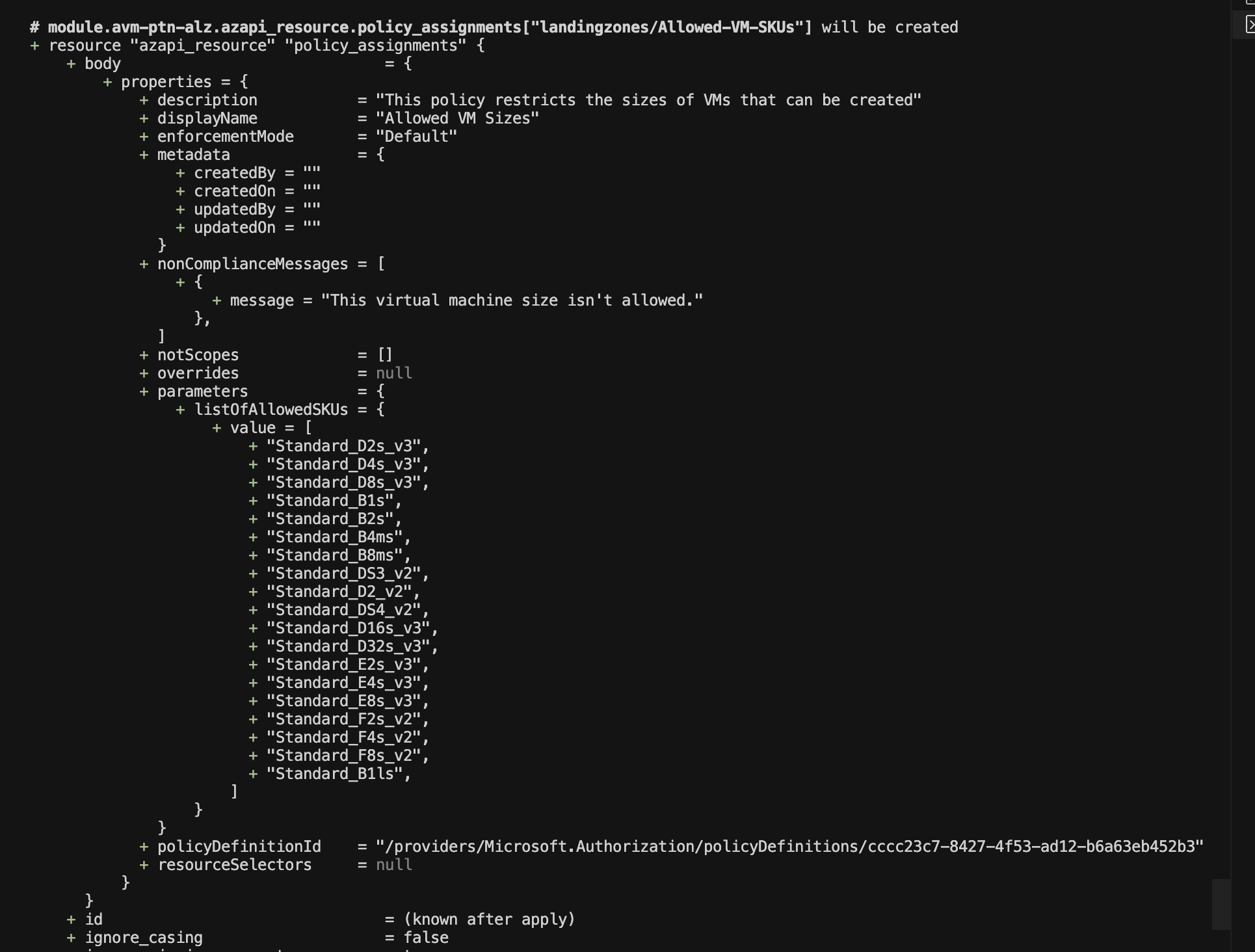
Let’s check in the portal to see our new policy assignment:
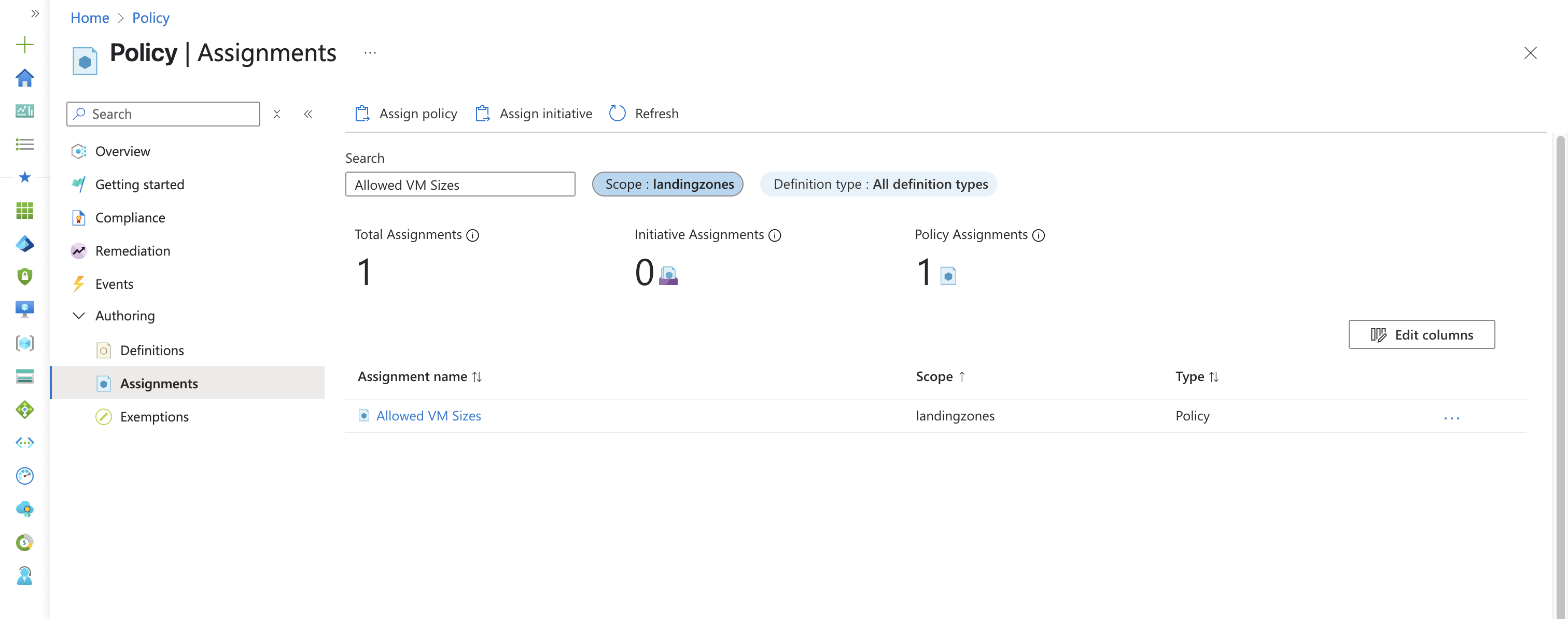
Great! We can see our policy is now assigned at the Landing Zones management group level, and will apply to all child management groups and subscriptions.
A Quick Aside…
When applying the above during writing this article, I got a change to the default management group, which can be seen below:
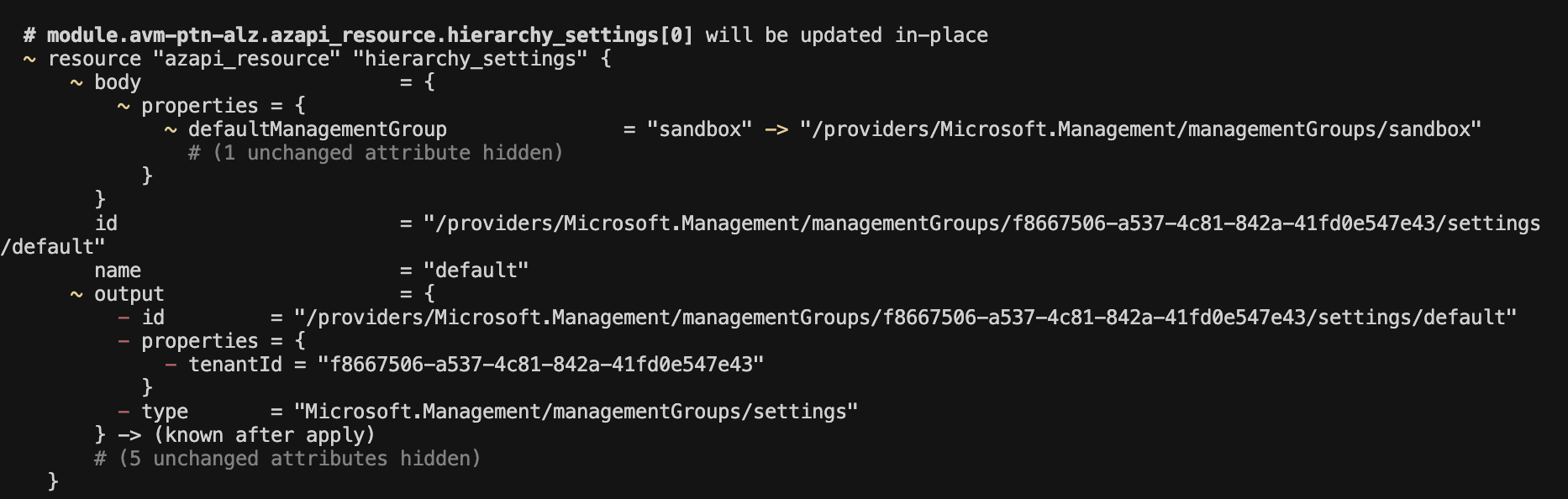
I’ve already reported this as a bug here and it has been fixed and closed - I’ve just not bumped my version I was playing with! Figured it was worth pointing out in case anyone else runs into it.
Creating and Assigning Custom Policies
Assigning built-in policies was straight forward enough, but what if you need to create a custom policy? Let’s take a look at how we can do this.
Creating the Policy Definition
Let’s create a new directory - lib/policy_definitions and in it, I’m going to create a file called required_tags.alz_policy_definition.json. Again, the directory name is not important, the file suffix is.
As the name implies, this policy will ensure specific tags are present on all taggable resources, denying deployment if they aren’t. A bit restrictive? Possibly. Possibly not. It depends on your viewpoint and what you want to achieve. But it serves as a good example, so let’s crack on.
{
  "name": "Required-Tags",
  "type": "Microsoft.Authorization/policyDefinitions",
  "properties": {
    "policyType": "Custom",
    "displayName": "Audit for mandatory tags on resources",
    "mode": "All",
    "description": "Ensures that mandatory tags are present on all taggable resources.",
    "parameters": {
      "effect": {
        "type": "String",
        "metadata": {
          "displayName": "Effect",
          "description": "Enable or disable the execution of the policy"
        },
        "allowedValues": ["Audit", "Deny", "Disabled"],
        "defaultValue": "Deny"
      },
      "mandatoryTags": {
        "type": "Array",
        "metadata": {
          "displayName": "Array of mandatory tags",
          "description": "Array of mandatory tags that must be present on the resources."
        }
      }
    },
    "policyRule": {
      "if": {
        "not": {
          "count": {
            "value": "[parameters('mandatoryTags')]",
            "name": "tagcount",
            "where": {
              "field": "tags",
              "containsKey": "[current('tagcount')]"
            }
          },
          "equals": "[length(parameters('mandatoryTags'))]"
        }
      },
      "then": {
        "effect": "[parameters('effect')]"
      }
    }
  }
}
You may have already worked out what we need to do now. We’ve three more things to add:
- An assignment definition in a JSON file.
- Adding our policy definition to an archetype override.
- Adding our assignment to an archetype override.
Creating the Policy Assignment
Let’s add the assignment definition. We’ll create a new file in lib/policy_assignments called required_tags.alz_policy_assignment.json.
{
  "properties": {
    "displayName": "Require specified tags on all resources",
    "description": "Enforces presence of specified tags on all resources",
    "metadata": {
      "version": "1.0.0",
      "category": "Tags"
    },
    "policyDefinitionId": "/providers/Microsoft.Authorization/policyDefinitions/Required-Tags",
    "parameters": {
      "mandatoryTags": {
        "value": ["placeholder"]
      },
      "effect": {
        "value": "Deny"
      }
    },
    "enforcementMode": "Default",
    "nonComplianceMessages": [
      {
        "message": "The specified required tags must be present on all resources."
      }
    ]
  },
  "location": "${default_location}",
  "identity": null,
  "name": "Required-Tags",
  "type": "Microsoft.Authorization/policyAssignments",
  "scope": "/providers/Microsoft.Management/managementGroups/placeholder"
}
The main thing to note here, is that the ID now ends with a name rather than a UUID. This name matches up with the name in our policy definition above it.
"policyDefinitionId": "/providers/Microsoft.Authorization/policyDefinitions/Required-Tags",
In this instance, there would be no UUID we could reference, as the policy hasn’t been created yet. The module takes care of this and matches things up based on the name.
Adding the Policy Definition and Assignment to an Archetype Override
Finally, we need to update our archetype override(s). This is the same approach as we took earlier. Two things we need to do in our override:
- Add the policy definition to
policy_definitions_to_add. - Add the assignment to
policy_assignments_to_add.
I’d usually define all policies at the pseudo-root, and assign them lower down, but to keep the example simpler, I’ll just add everything to the landingzones archetype override so it is all in one file. Our lib/landingzones.alz_archetype_override.json file now looks like this:
{
  "name": "landing_zones_override",
  "base_archetype": "landing_zones",
  "policy_assignments_to_add": ["Allowed-VM-SKUs", "Required-Tags"],
  "policy_assignments_to_remove": ["Enable-DDoS-VNET"],
  "policy_definitions_to_add": ["Required-Tags"],
  "policy_definitions_to_remove": [],
  "policy_set_definitions_to_add": [],
  "policy_set_definitions_to_remove": [],
  "role_definitions_to_add": [],
  "role_definitions_to_remove": []
}
A quick terraform apply later, and everything is created. The only problem here is I’ve not told it which tags are mandatory - I left out the default value and have not set it in the assignment (I just used a placeholder).
Passing in Parameter Values
Let’s provide these values using the terraform approach we saw in part one. We are going to set two mandatory tags - environment and owner (you’d want more than this in real life of course).
module "avm-ptn-alz" {
  source             = "Azure/avm-ptn-alz/azurerm"
  version            = "0.12.0"
  architecture_name  = "custom-alz"
  location           = "uksouth"
  parent_resource_id = data.azapi_client_config.current.tenant_id
  subscription_placement = {
    management = {
      subscription_id       = "8661d1f5-868c-4760-90cc-7443711cff65"
      management_group_name = "management"
    }
    connectivity = {
      subscription_id       = "165cba3b-8642-4aa1-bbab-35e1140dd81b"
      management_group_name = "connectivity"
    }
    identity = {
      subscription_id       = "4595d981-87d1-4772-bd3a-1f5471da6c24"
      management_group_name = "identity"
    }
  }
  management_group_hierarchy_settings = {
    default_management_group_name            = "sandbox"
    require_authorization_for_group_creation = true
  }
  policy_assignments_to_modify = {
    landingzones = {
      policy_assignments = {
        Enforce-GR-KeyVault = {
          parameters = {
            secretsActiveInDays                = jsonencode({ value = 120 })
            secretsValidityInDays              = jsonencode({ value = 120 })
            keysActiveInDays                   = jsonencode({ value = 120 })
            keysValidityInDays                 = jsonencode({ value = 120 })
            minimumSecretsLifeDaysBeforeExpiry = jsonencode({ value = 30 })
            minimumKeysLifeDaysBeforeExpiry    = jsonencode({ value = 30 })
          }
        }
        Required-Tags = {
          parameters = {
            mandatoryTags = jsonencode({ value = ["environment", "owner"] })
          }
        }
      }
    }
  }
}
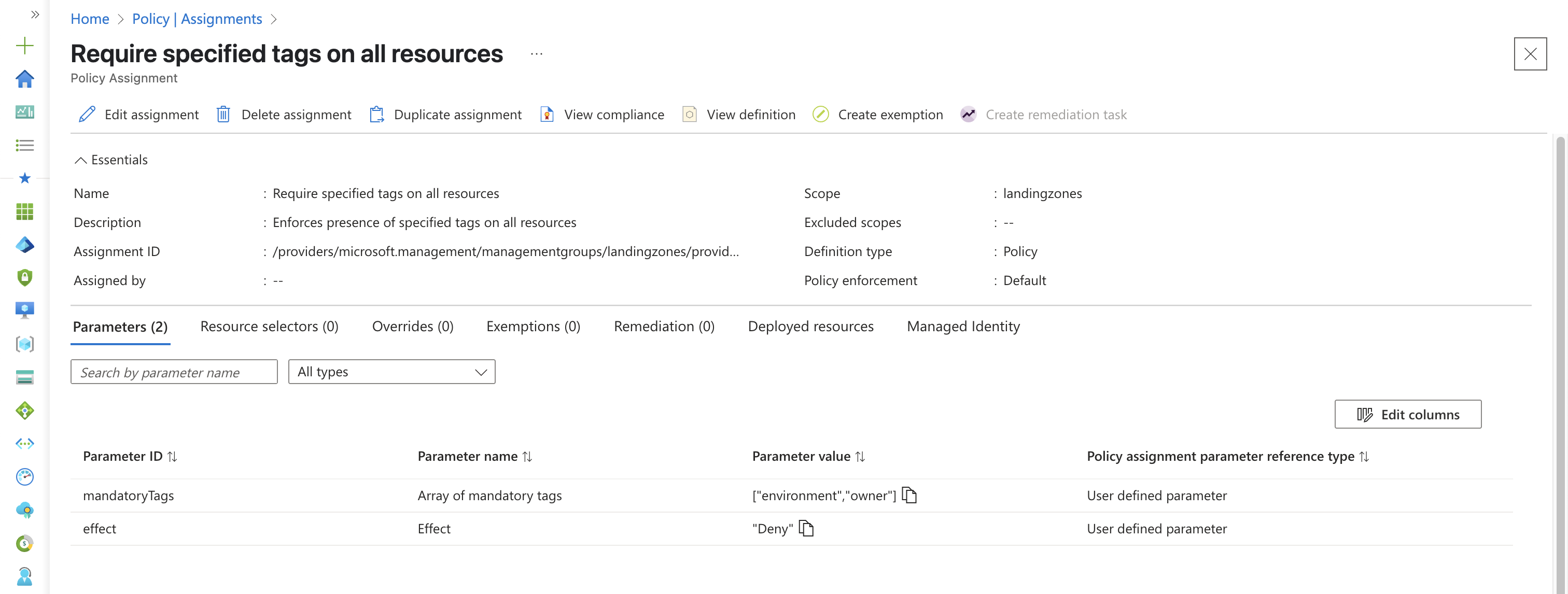
Once the apply has completed, we can see the policy assignment in the portal, with the correct mandatory tags:
After a waiting a while for the policy to kick in, let’s give it a whirl by trying to create a VM without the required tags…

The deployment fails because we haven’t provided the required tags. The policy is working as intended, enforcing our tagging requirements across the management group.
Let’s try again with the required tags to make sure that works…

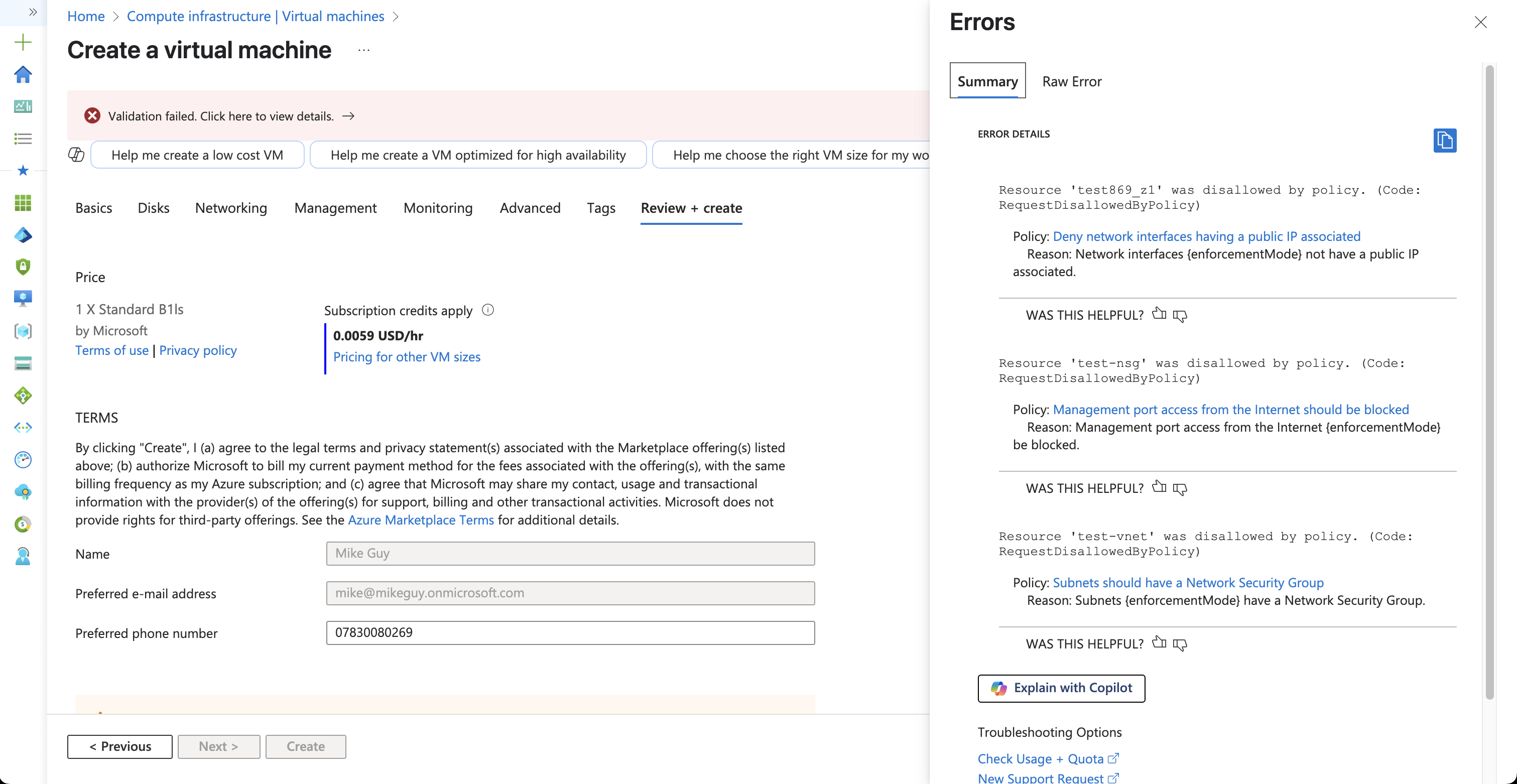
Success… well, kind of! We aren’t getting the policy fail on tags anymore, but we are getting a bunch of other policy failures. Specifically policies around public IPs in the “corp” management group, a lack of network security groups and exposed management ports. All good things the policies are checking since we deployed the ALZ module.
Creating Custom Role Definitions
Finally, you may want to tweak some of the roles that are automatically created, or create your own new one. Let’s create a custom role for our Terraform service principals we may use in the future. We want to take away certain actions from it, to ensure our teams can’t do things they shouldn’t.
This time I’m going to create a subscription_terraform.alz_role_definition.json file in the lib/role_definitions directory. You know the drill by now - the directory name is not important, the file suffix is.
In this role, I’m saying the assigned principal can essentially do anything, but we are removing the ability to create/change/delete certain things. This is just an example and certainly not a definitive list, but is one of the many ways you could put controls on Terraform deployments.
{
  "name": "2f354b09-8b70-4167-b263-b4b3e293fdd5",
  "type": "Microsoft.Authorization/roleDefinitions",
  "apiVersion": "2018-01-01-preview",
  "properties": {
    "roleName": "Subscription-Terraform",
    "description": "Used for project-level terraform deployments.",
    "type": "CustomRole",
    "permissions": [
      {
        "actions": [
          "*"
        ],
        "notActions": [
          "Microsoft.Network/vpnGateways/*",
          "Microsoft.Network/expressRouteCircuits/*",
          "Microsoft.Network/vpnSites/*",
          "Microsoft.Network/virtualNetworks/peer/*",
          "Microsoft.Network/virtualNetworks/virtualNetworkPeerings/write",
          "Microsoft.Network/virtualNetworks/virtualNetworkPeerings/delete",
          "Microsoft.Network/firewallPolicies/*",
          "Microsoft.Network/azureFirewalls/*",
          "Microsoft.Network/bastionHosts/*",
          "Microsoft.Network/ddosProtectionPlans/*",
          "Microsoft.Security/securitySolutions/*",
          "Microsoft.Security/advancedThreatProtectionSettings/*",
          "Microsoft.Network/connections/*"
        ],
        "dataActions": [],
        "notDataActions": []
      }
    ],
    "assignableScopes": [
      "${current_scope_resource_id}"
    ]
  }
}
To deploy our custom role, we now need to add it to our archetype override. Again, I’d usually add this at the pseudo-root, but for ease of demonstration, I’m sticking it in the landing zones file. This file now looks like this:
{
  "name": "landing_zones_override",
  "base_archetype": "landing_zones",
  "policy_assignments_to_add": ["Allowed-VM-SKUs", "Required-Tags"],
  "policy_assignments_to_remove": ["Enable-DDoS-VNET"],
  "policy_definitions_to_add": ["Required-Tags"],
  "policy_definitions_to_remove": [],
  "policy_set_definitions_to_add": [],
  "policy_set_definitions_to_remove": [],
  "role_definitions_to_add": ["Subscription-Terraform"],
  "role_definitions_to_remove": []
}
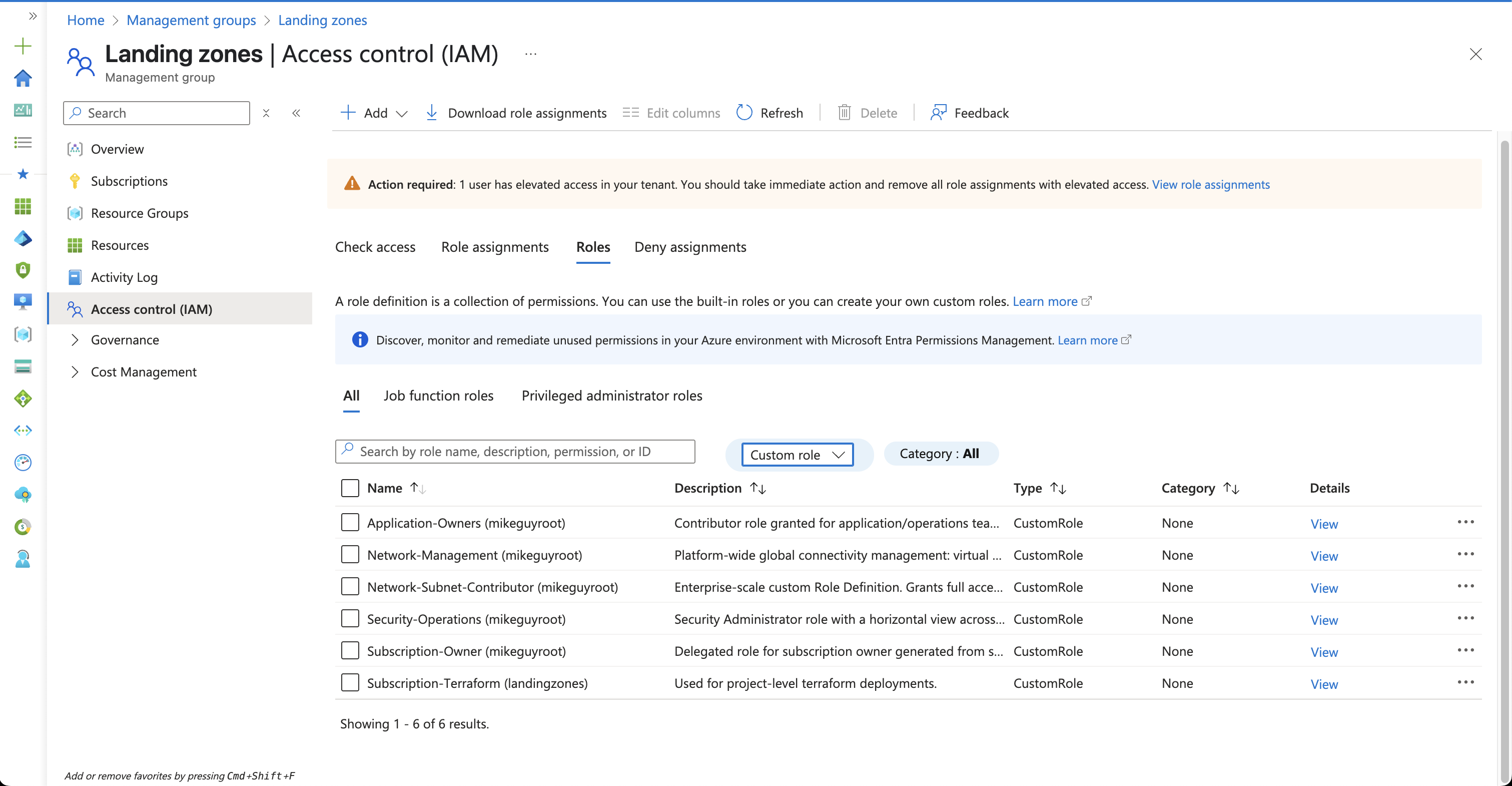
Checking our IAM roles after a successful apply, we can now see the new custom role, in addition to the other custom roles the module created.
Summary
Working with Azure policies in Terraform has never been the nicest thing, because they are always defined in JSON which feels very different to the HCL you’re used to working with (though saying that - you could use JSON for Terraform if you want 😉). So working with them in this module isn’t really any different.
The main thing you really have to remember is to always update your archetype overrides as well. It can be easy to forget you need to add the assignment to the override. The assignment alone is not enough.
I’ve not really had any issues using this module, so it’s definitely worth giving it a go. The main challenge is just taking the time to review the policies it creates, understand which are/are not applicable to your environment, and tuning accordingly.
Policy is one of those things that is an continual process - it shouldn’t be a set it once and forget approach.